|
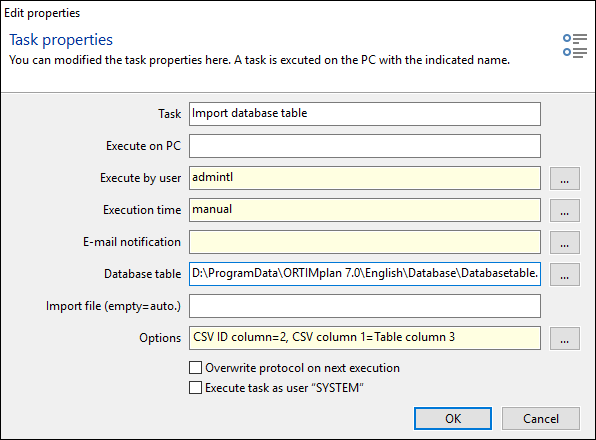
Database table
Selecting the button … opens the file selection dialog in the set database directory.
Import file
If the field is blank, all the files will be imported from the set ERP import directory (System settings, ERP interface, Directories). You can enter a file name in the field; wildcards are allowed (e.g. *.CSV).
Options
Selecting the button … on the right of the Options field opens the Import options window.
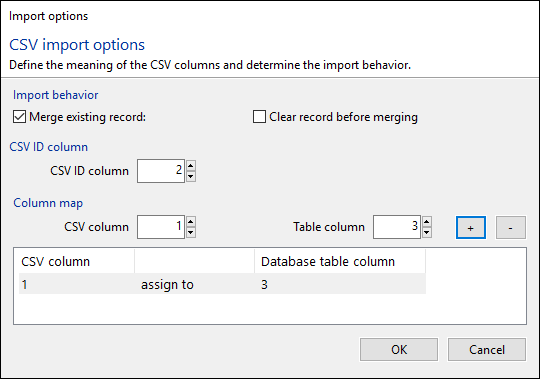
Import behavior
|
|
Merge existing record
|
If this option is checked, a data record identified via the ID column (Name) of the database table will be matched / filled with the import data. If not, the data record will be ignored and documented as invalid in the log.
|
Clear record before merging
|
If this option is checked, an existing data record will be emptied before being matched / filled.
|
CSV ID column
|
The column of the CSV file is entered here. Values of this column are transferred into the ID / Name
field of the database table.

|
The values of the ID column must be unique.
|
|
|
|
Column map
|
|
This function allows you to map the columns of the CSV file to columns of the database table. Use the + and - buttons to enter a new transformation into the list. If you select a transformation in the list, you can edit its values via the entry fields located above.
|
CSV column
|
The column of the CSV file is entered here.
|
Database table column
|
The column of the database table is entered here. Column 0 means that the CSV column is not assigned / ignored.
|
|


