Manual import


Manual import |
|
|
The manual import function is accessed via the Route Sheet Navigator. Route Sheet NavigatorIf you open the Work plans menu, followed by the Import submenu, you will find the option Workplans via ERP interface. This function allows you to open the Import Wizard. It is also possible to access the same function via the Import option in the toolbar.
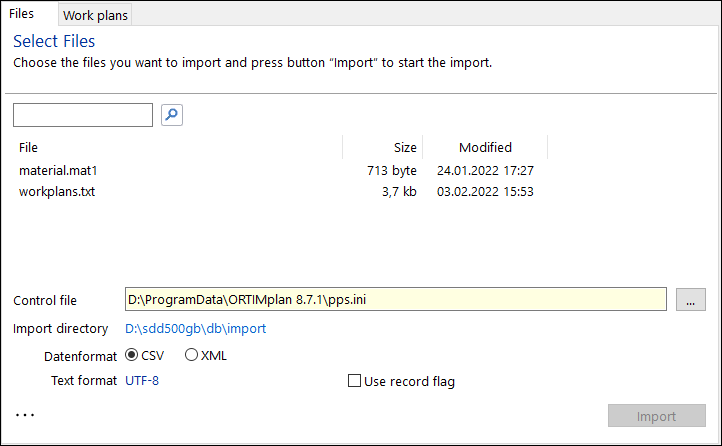
Import Wizard Using the Import Wizard, it is possible to implement all the necessary settings and to perform the actual import procedure. Files
This window displays the files located in the set import directory. Select the files you wish to import and select Import to execute the import. File filterIf the list of import files is large, you can use the file filter field to display only the files that match the typed filter.
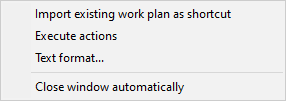
Use the delete icon to the right of the filter field to reset the filter. Control fileThe control file determines the configuration (e.g. data fields, data format, text format, directories) that is to be imported. Import directoryHere the current import directory is displayed. A mouse click on the link opens the Windows Explorer on the directory. Text formatThe text format used for the import data is displayed here. The text format is defined centrally for all imports in the system settings for the ERP interface. If you want to create have to import data in a different text format, you can change the text format here differently for the individual import. Use record flagPerforms the import with record flag. ... menu
Import
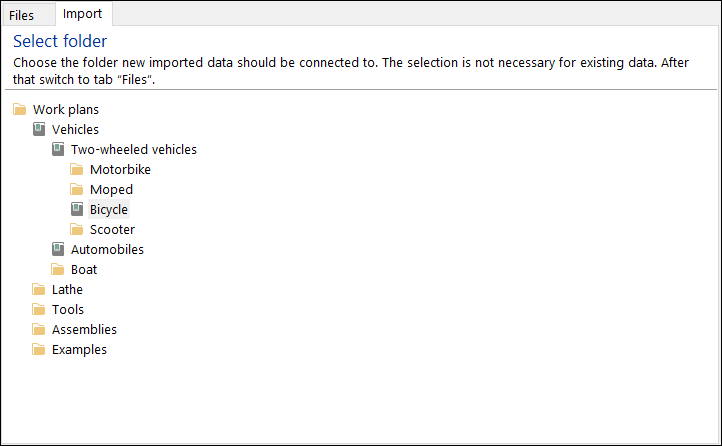
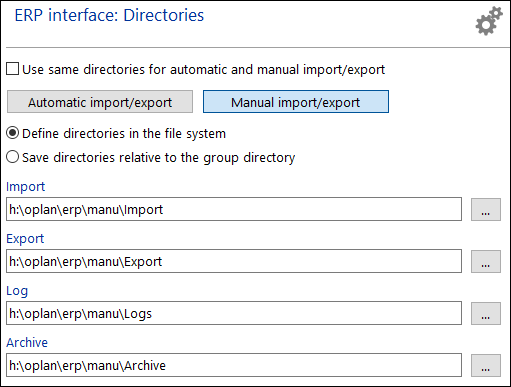
This window is used for setting the import destination. Choose the route sheet under which the imported files are to be appended. The import data are analyzed and made available in accordance with the defined import rules beneath the previously defined route sheet within the folder hierarchy. DirectoriesThe directories used for importing from are defined in the system settings.
When you perform the import procedure for the first time, you must first open the Directories tab view and set the directories that you wish to use.
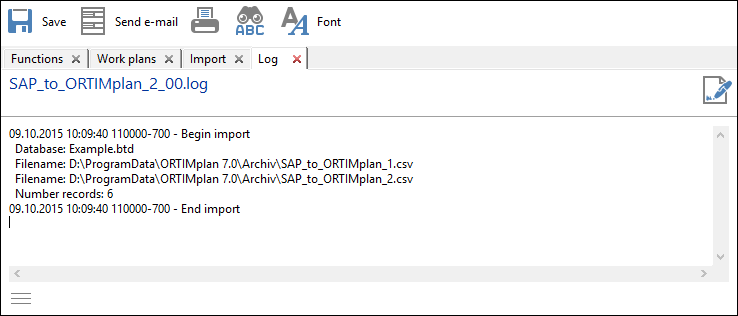
LogsClicking the Log item in the file menu allows you to select a log file and view its contents.
The log file documents the most important data relating to the import. Any problems that may have occurred are also listed here. |