Automatic import


Automatic import |
|
|
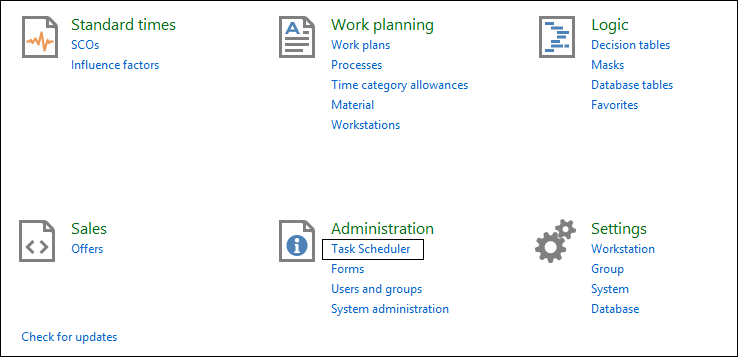
The automatic import process is executed via the Task Scheduler of ORTIMplan. Open the Task Scheduler via the main program window.
Task SchedulerCreate a new task using the New item in the tool bar.
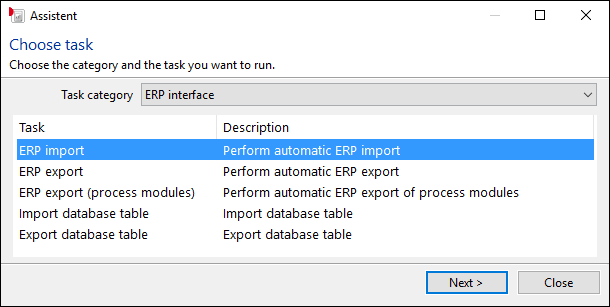
If the ERP Interface has been activated via the PIN code, the Wizard will display the task ERP Import for the new tasks. If this task does not appear here, either the PIN code has not been entered or has not been entered correctly. If so, repeat the registration procedure.
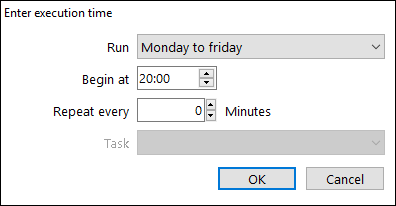
Select task ERP Import and define the time and execution rule.
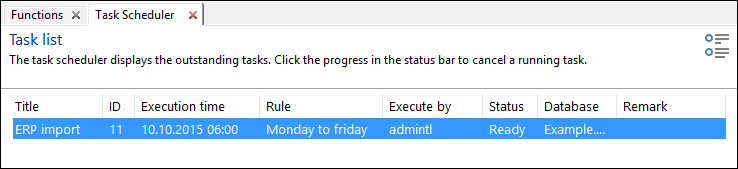
Confirming your entry with OK creates the task, which now appears in the Task Scheduler’s list of tasks.
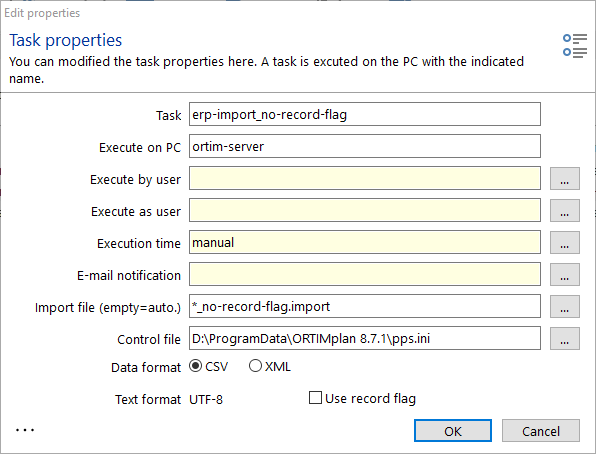
The properties of the task ERP import store both the directories for the import and log file in addition to the time of the import and the rule for assigning names to the import file. It is possible to open the properties by selecting the Edit item in the tool bar.
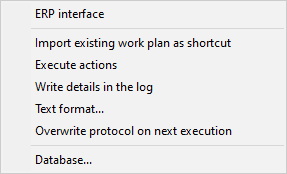
Import fileAn empty field Import file means the same as *.*. Control fileThe control file determines the configuration (e.g. data fields, data format, text format, directories) that is to be imported. Text formatThe text format used for this task. The text format is defined centrally for all imports in the system settings for the ERP interface. If you want to create have to import data in a different text format, you can change the text format here differently for the individual import. Use record flagPerforms the import with record flag. ... menu
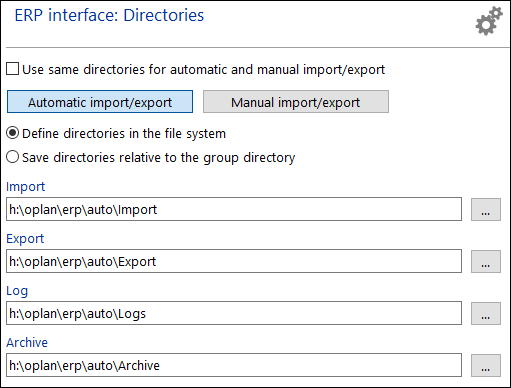
DirectoriesThe directories are defined via the system settings.
Prior to activating the automatic import, you first need to set an number of directories. Before the import, the import files are moved from the import directory into the archive directory. It is from here that the actual import takes place. The files are assigned a new name and remain within the archive directory until they are removed manually. Log files are stored in the log directory. In addition, you can also find the import log in the log to the task ERP import. It is possible to open the task log by simply double-clicking with the mouse on the task. This form of treatment protects ORTIMplan from importing files multiple times and from repeating the same imports and, as such, from resetting what may already be a released status back the import status. |